

A frame from the official Muse launch post identifies the product but does not demonstrate its reliability or permission safeguards.
Meta's new Muse assistant is designed to do more than answer questions: with permission, it can act on files and familiar Mac apps. That makes the launch useful and uncomfortable in equal measure. The important question is not whether a desktop agent looks clever in a demo. It is which access you should grant, for which task, and how easily you can reverse the result.
Quick Navigation
- What is it? A Mac assistant that can work across files and apps
- What changed? Meta moved from chat answers to computer actions
- How does it work? Mac permissions, app connections, and confirmations
- What should you try? Low-risk, reversible tasks first
- What remains unclear? Reliability, rollout details, and control under failure
- FAQ: Five practical questions before granting access
What is Meta Muse for Mac?
Meta Muse for Mac is a desktop AI assistant that can take actions across local files and native apps after the user grants access. The text of its official September 18 launch post lists tasks such as organizing a Downloads folder, finding a file, and summarizing messages or notes; the attached mascot animation does not show those tasks. TechCrunch independently reported that the product can work with files, messages, calendars, notes, and email, while describing permissions as opt-in and sensitive actions as confirmation-gated. Those reports establish the intended workflow, not dependable performance. This review did not run Muse, and public launch material does not show how often it chooses the wrong file, misunderstands an instruction, or recovers from an interrupted action. The practical conclusion is narrower: Muse makes computer use part of the assistant interface, so its value depends as much on permission design and reversibility as on the quality of its answers.
What We Know So Far
This is a source review, not a hands-on Muse test. The confirmed layer comes from Meta's public task examples, TechCrunch's launch report, and a visually checked public permissions screenshot. Together they establish the product's intended actions and visible permission setup. They do not establish task success rates, safe recovery, broad availability, or the completeness of sensitive-action confirmations. Recommendations below are therefore a cautious testing plan, not a performance verdict.
What changed with Meta Muse for Mac?
Most consumer assistants still stop at advice: they explain how to clean a folder, draft a message, or summarize text that you paste into a chat. Muse is presented as an action layer over the computer itself. It can receive an instruction, inspect an authorized surface, and then perform or prepare a change.
- The assistant answers, while the user clicks: Muse's public launch position: Muse can act on files and connected Mac apps; What users should verify: Whether every action is visible, interruptible, and easy to undo
- App context is pasted into a chat: Muse's public launch position: Authorized apps can supply context directly; What users should verify: Which data is exposed by each permission or connection
- Sensitive steps are completed manually: Muse's public launch position: Meta says Muse asks for confirmation on sensitive actions; What users should verify: Which operations trigger confirmation in real use
The shift is meaningful because a wrong answer is usually easy to ignore, while a wrong action can rename, move, send, or expose something. Even if the model is excellent, the permission and recovery layers decide whether the product feels helpful or reckless.
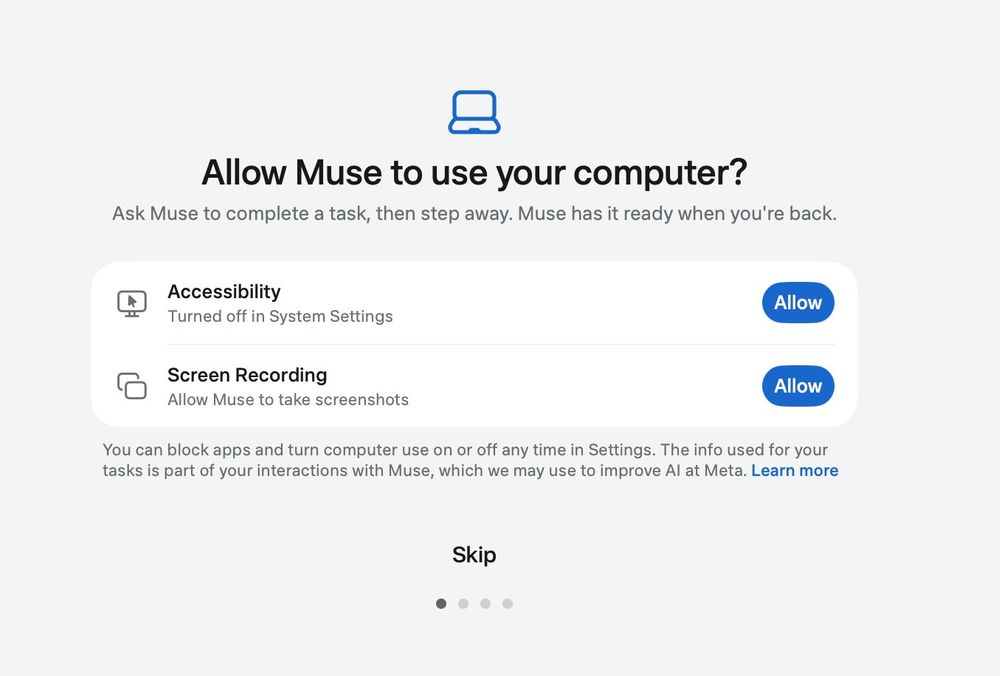
A public community screenshot shows Muse requesting Accessibility and Screen Recording access, with controls to disable permissions. It documents one visible setup screen; it does not prove that every action is safe or that all users see the same rollout.
How does Muse act across Mac apps?
The public material suggests two access paths. First, Mac-level permissions such as Accessibility and Screen Recording let an app observe or interact with parts of the desktop. Second, app or service connections can provide structured access to tools such as Calendar, Reminders, or Contacts. The community screenshot above shows the first path; a separate public setup image showed several Apple app connections as not enabled by default.
This distinction matters. Screen access can expose more context than the words in a single prompt, while a connector may expose a narrower but more structured set of records. Neither is automatically safe. A permission is only an entry gate; users also need clear previews, confirmation before high-impact actions, a useful activity history, and a dependable way to stop or reverse work.
Meta says the user must explicitly grant access and that Muse asks before sensitive operations. Those are necessary controls, but launch posts cannot establish how consistently the product classifies an action as sensitive. A folder cleanup may look harmless until it moves a file that another workflow expects. An email summary is low impact; sending a reply is not.
The developer view
Muse is a useful case study in agent product design even without a public integration story. The central lesson is that operating-system consent and product-level authorization solve different problems. Accessibility permission may allow interaction, but the product still needs its own policy for action scope, confirmation, logging, cancellation, and recovery.
If you build a computer-use agent, test failure behavior before expanding capability. Give it a fixed folder of disposable files. Record the intended plan, each observed state, each action, and the final diff. Then inject ambiguity: two files with similar names, a missing app window, a stale calendar entry, or a request that changes midway through execution. A useful agent should pause when certainty falls, not improvise silently.
The product enthusiast view
For a normal user, Muse is most interesting when the task is tedious but reversible. Organizing a Downloads folder, locating an old file, or summarizing messages can save attention without immediately creating an external consequence. You can inspect the proposed result and correct it.
The risk rises sharply when an action leaves your computer or destroys information. Sending email, making a purchase, deleting files, changing account settings, or posting publicly should remain human-confirmed until the product has earned trust on your own machine. Convenience is not a substitute for an audit trail.
Which Muse tasks are safe enough to try first?
Start with a three-step ladder rather than granting broad access and hoping for the best.
- Read-only retrieval — Ask Muse to find a file or summarize a small, non-sensitive set of notes. Check whether it identifies the right material and cites where it came from. 2. Reversible local organization — Let it propose or perform changes inside a disposable test folder. Verify that moves and renames are visible and reversible. 3. Draft, do not send — If you test messages or email, stop at a draft. Review recipients, attachments, tone, and factual claims yourself.
Hold off on purchases, permanent deletion, account changes, public posts, and unattended communication. Those tasks combine weak recoverability with consequences outside the local machine. They deserve explicit review even after lower-risk tests go well.
The decision rule is simple: grant the smallest permission that supports a task whose result you can inspect and undo. Broader capability can wait until the product proves predictable in your own workflow.
What remains unclear?
The launch material leaves several decision-critical questions unanswered.
- There is no independent evidence here for success rate, error rate, latency, or recovery after a partial action.
- This review could not verify complete regional availability, pricing, supported Mac hardware, or exact rollout eligibility from Meta's download page.
- Meta says sensitive operations require confirmation, but the public sources do not define the full list or show how edge cases are classified.
- The available screenshots show permission controls, not the complete data path, retention policy, or every connector's scope.
- A polished demo does not show what happens when app layouts change, two files share a name, or a user interrupts the agent mid-task.
Those gaps do not make Muse unusable. They make a bounded pilot more rational than blanket trust.
Quick Take
- What is actually new?: Evidence-backed answer: Meta is offering a Mac assistant that can act across authorized files and apps, not only answer in chat.
- Who can use it now?: Evidence-backed answer: Meta announced the Mac release on September 18, 2026; exact eligibility was not verified in this review.
- What is the strongest evidence?: Evidence-backed answer: Meta's written task examples and TechCrunch's independent launch report agree on the core action and permission model.
- What should users verify?: Evidence-backed answer: Permission scope, previews, confirmations, activity history, cancellation, and undo behavior.
- What is still unknown?: Evidence-backed answer: Real-world reliability, detailed rollout limits, and how consistently sensitive actions are caught.
Muse is worth testing as a supervised assistant for reversible chores, not as an unattended operator with every permission enabled.
FAQ
What is Meta Muse for Mac?
Meta Muse is a desktop AI assistant designed to work across authorized files and Mac apps. Meta's launch examples include organizing Downloads, finding files, and summarizing messages or notes. It is positioned as an action-taking assistant, but this article does not claim independent hands-on validation.
Is Meta Muse for Mac available now?
Meta announced Muse for Mac on September 18, 2026 and published a download destination. This review could not reliably load that page, so it does not confirm every supported region, account, hardware requirement, or rollout condition. Check the current official availability before planning around it.
What permissions does Muse request?
A public setup screenshot shows Accessibility and Screen Recording controls, while another screen shows optional Apple app connections. The exact permission set may depend on the task and version. Review each request in macOS settings and disable access that is not needed for your test.
What should I ask Muse to do first?
Begin with read-only or reversible work: find a known file, summarize a small set of non-sensitive notes, or organize copies inside a disposable folder. Compare the result with your instruction and verify that you can stop or undo the action before expanding access.
Should I let Muse send email or delete files?
Not unattended at the start. Drafting an email is easier to review than sending it, and moving a copied file is safer than permanent deletion. Require a visible preview and explicit confirmation for actions that are destructive, public, financial, or difficult to reverse.
Discover practical AI products and emerging tools at AIToolHunt.